 ClipMan
Everything you copied, one keystroke away
ClipMan keeps the text, rich text, images and files you copy on your own machine. Press ⌘⇧V (Ctrl+Shift+V on Windows and Linux) to open the QuickBar, type a few characters, and press Enter to paste into the app you were using.
macOS · Windows · Linux · MIT licensed · No account, data stays local
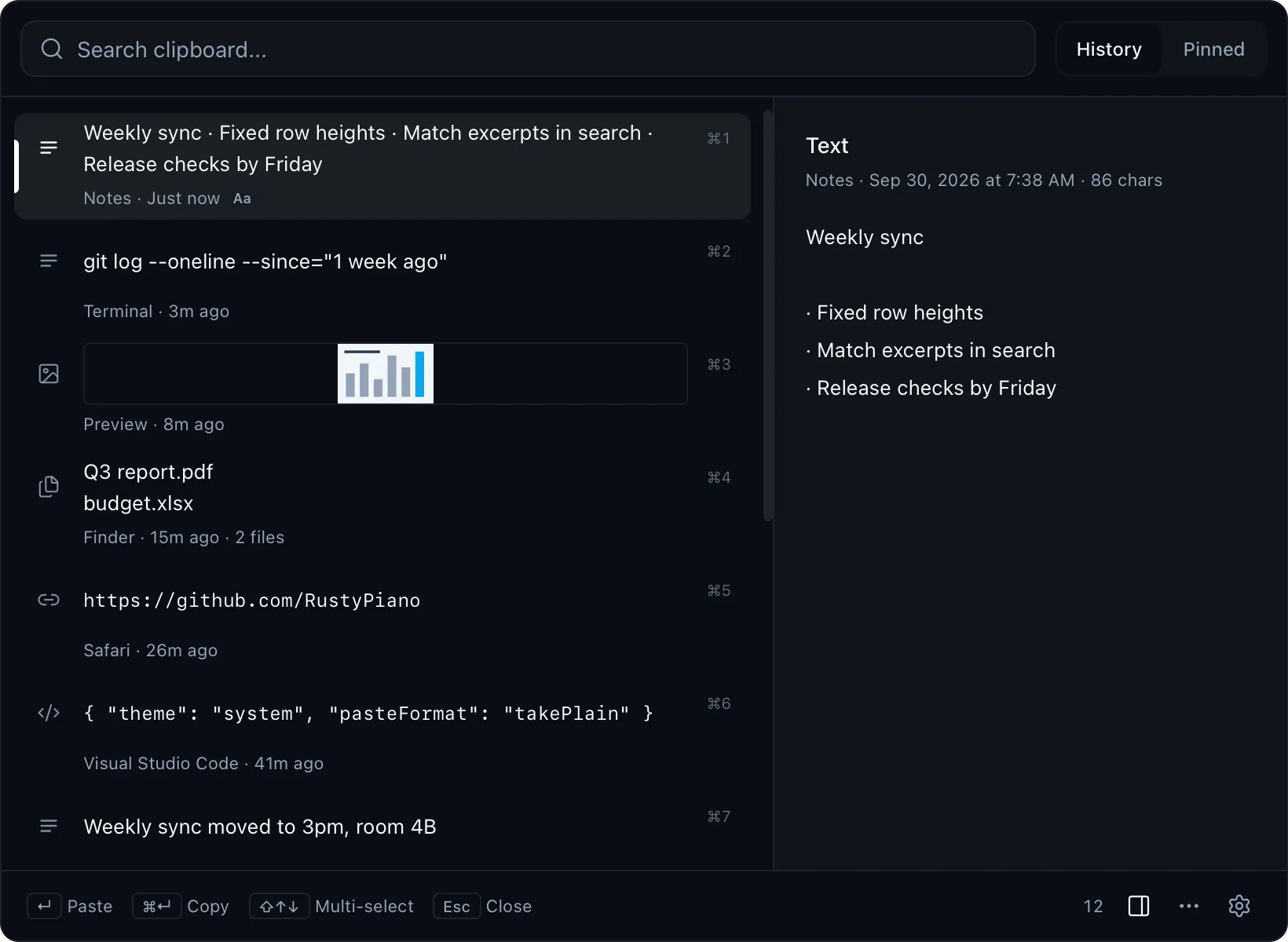
Keyboard first
Start typing as soon as the QuickBar opens to search. Everything else has a shortcut.
On Windows and Linux, ⌘ is Ctrl and ⌥ is Alt.
- ⌘⇧V
- Open the QuickBar (configurable)
- ↑ ↓
- Move the selection
- ↵
- Paste into the current app
- ⌘↵
- Copy only, without pasting
- ⌥↵
- Use the other format once (plain or original)
- ⌘1 – ⌘9
- Paste item 1 to 9 directly
- ⌘P
- Pin or unpin
- ⌘⌫
- Delete the item
- ⌥← ⌥→
- Switch between History and Pinned
- Esc
- Close the QuickBar
Search Chinese, English and code alike
The full-text index covers the complete content of every item, so any fragment finds it, even one or two characters. Results show the text around the match, and the preview shows the whole item.

Select several, paste once
Hold ⌘ and click several items, then press Enter to paste them as one block joined by newlines; images are skipped. Pick one of three paste formats: keep original formatting, plain text via ClipMan, or always plain text. ⌥↵ uses the other format for a single paste.

Keep frequent items pinned
Pinned items live in their own list and never count against the history limit. Add labels, reorder with ⌘⇧↑↓, and bind a separate shortcut that opens the pinned list directly. The tray menu lists recent and pinned items too.

Passwords and secrets stay out of history
- Skips content the system marks as a password or not to be recorded, such as passwords copied from a password manager.
- Detects private keys, API keys, JWTs and similar secrets and skips them before they are stored.
- Exclude specific apps on macOS, and pause capture from the tray at any time.
- History lives in a local SQLite database: no account, no cloud sync, and the network is only used to check for updates.
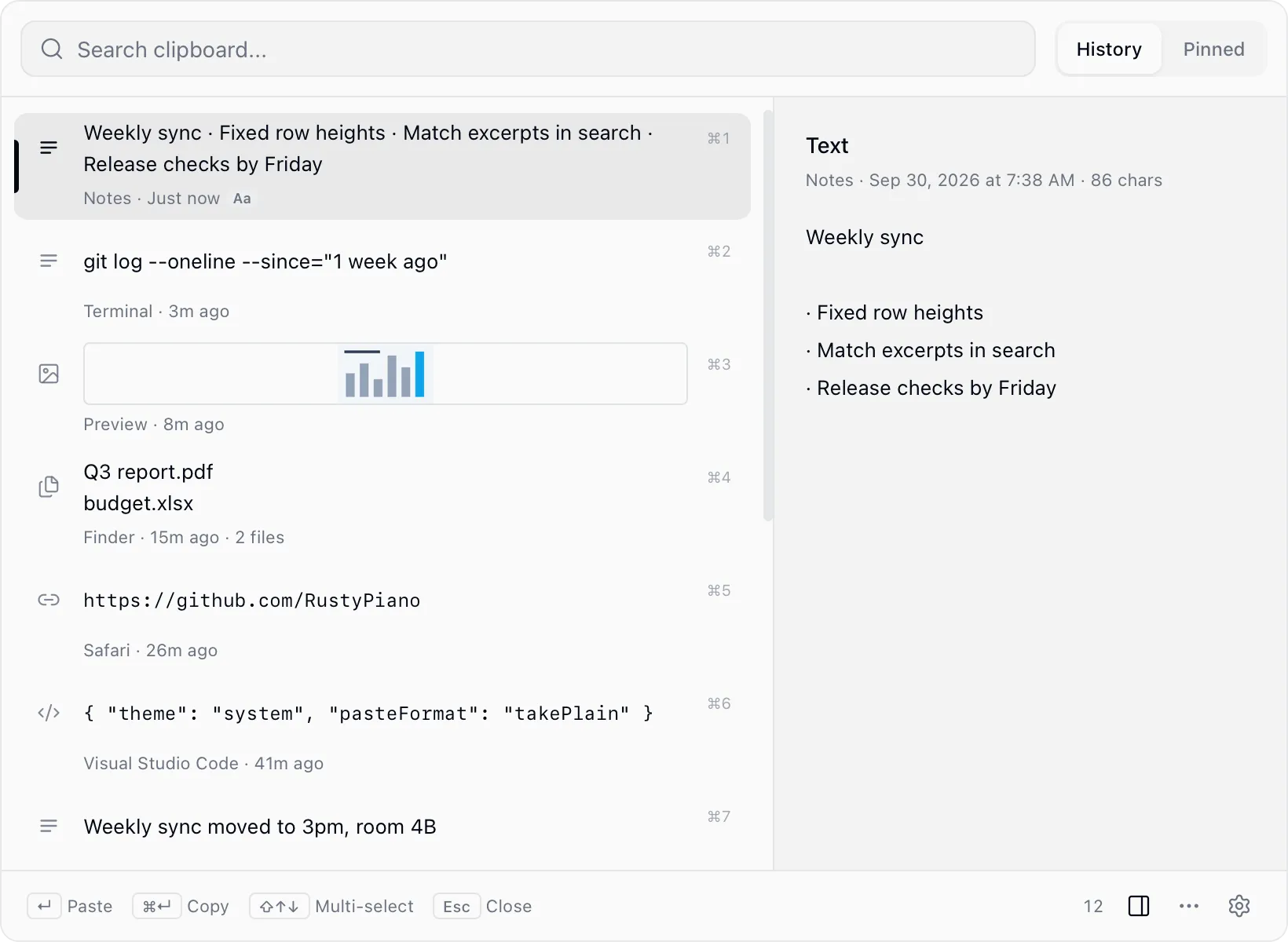
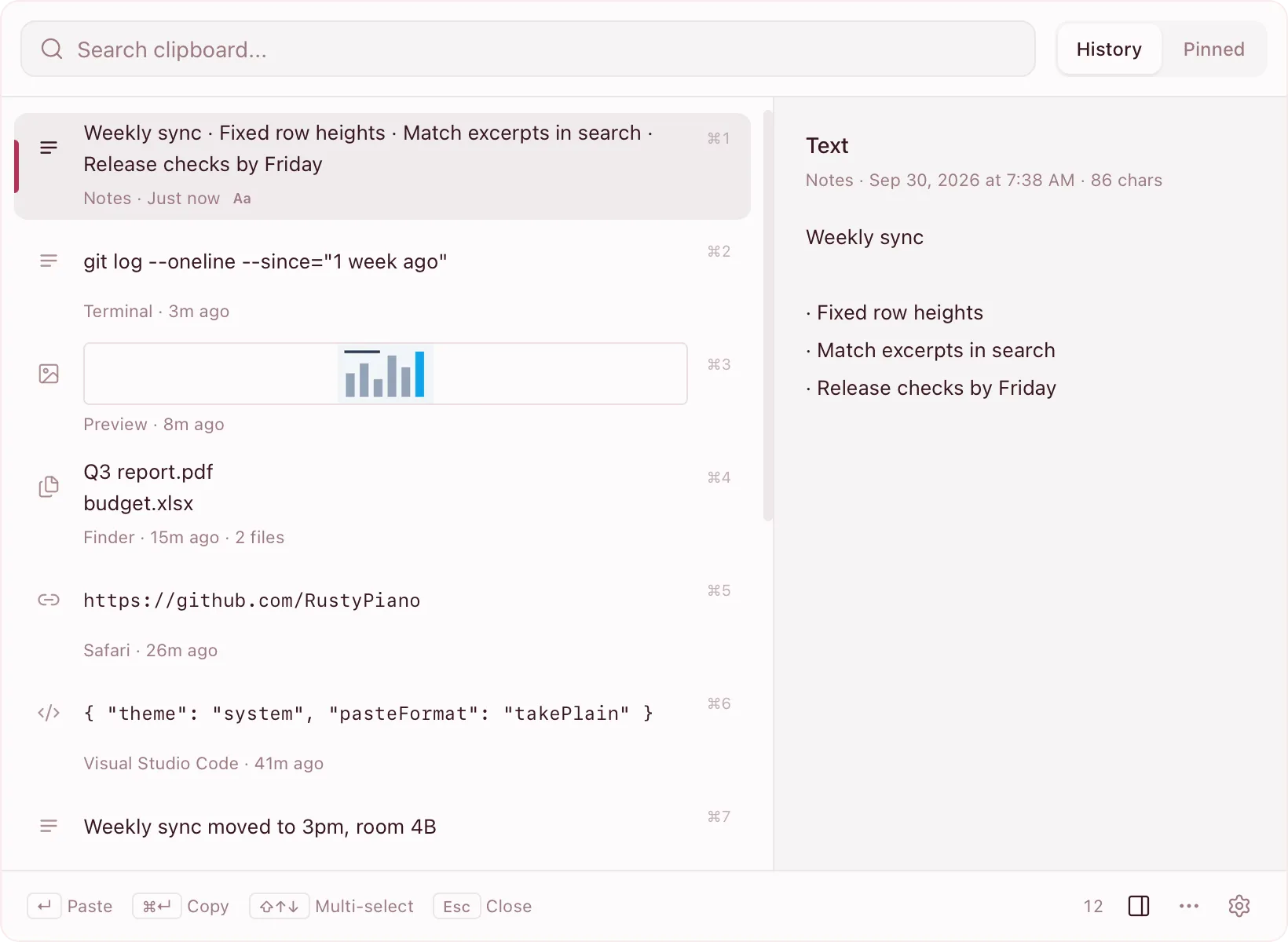
Three themes
Light, dark and light pink, or follow the system.
Download ClipMan
Version 2.4.4, released 2026-09-30. Installed copies can check for and install updates in Settings → About. Release notes
Linux
64-bit, requires X11 or XWayland
FAQ
macOS says the developer cannot be verified+
ClipMan is not notarized by Apple yet. In Finder, right-click ClipMan and choose Open, or go to System Settings → Privacy & Security and click Open Anyway at the bottom. You only need to do this once.
Why does macOS ask for Accessibility permission?+
Auto-paste simulates pressing ⌘V, which macOS only allows for apps with Accessibility permission. Without it you can still copy, and the QuickBar shows how to grant it. You can also turn off auto-paste in Settings and copy only.
Windows shows "Windows protected your PC"+
The installer is not code-signed, so SmartScreen may block it. Click More info, then Run anyway.
What are the limits on Linux?+
ClipMan needs X11 or XWayland. In Wayland-only sessions it cannot watch the clipboard, so it shows an error and exits. Auto-paste may not work in native Wayland windows; the item is still copied, so paste it manually.
Where is my history stored? Is it uploaded?+
In a SQLite database on your machine. Settings shows its location and can move it to another folder. ClipMan has no account or sync and never uploads clipboard content.
How do I update?+
Check for updates in Settings → About. Update packages are signature-checked after download, before they are installed.